Locations
Manage your locations and facilities — with address, map and access control.
Overview
You find this page in the menu under We → Locations.
Under Locations you maintain your facilities with address and map placement. Locations are assigned to courts, reservations and access points.
Locations form the foundation of your booking structure: every court, every slot rule and every access point belongs to a location. If you operate several facilities, you create them as separate locations and thereby control which courts, prices and opening hours apply in each case. The location screen is divided into four tabs:
- Locations — address, contact details and master data of the facility,
- Maps — the map placement for website and app,
- Access control — the access points for unstaffed operation,
- Slots — the slot rules with times and prices per resource.
Via the plus button you create a new location; the list shows name, street, postcode and city and can be searched. This keeps you in control even with several branches. Because reservations, prices and access are always tied to a location, you can design offers differently per facility — for example separate rates or opening hours per branch.
The map placement in the Maps tab ensures that guests find your facility directly on the website and in the app and can open a route to it. Address and contact data appear automatically on receipts and in confirmation emails.
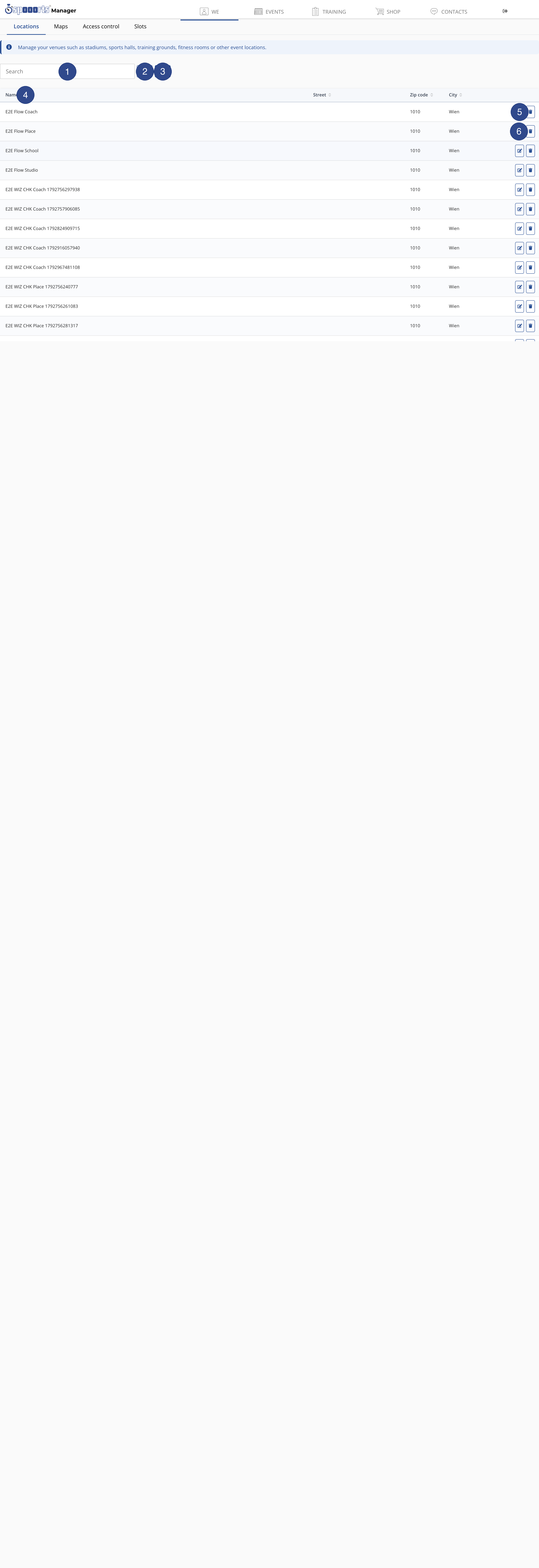
- ① Search
- Filters the location list by the text you type. The list narrows as you type, so you quickly find the right one even with many locations.
- ② Search
- Runs the search for the entered term. Useful when you want to type the full term first and then confirm.
- ③ New
- Opens the form to create a new location. There you enter the name, address and further details of the venue.
- ④ Sort columns
- Sorts the list in ascending or descending order by this column. Clicking again reverses the order, keeping even long lists manageable.
- ⑤ Edit
- Opens the location to change its details. Changes take effect immediately everywhere the location is used.
- ⑥ Delete
- Permanently removes the location after a confirmation prompt. Remove a location from events and courses first if it is still in use.
Create locations
Menu path: We → Locations. The screen has four tabs: Locations, Maps (map placement), Access control and Slots (slot rules).
With + you create a location; the list shows Name, Street, Zip and City and is searchable. Per location you store address and contact; map placement is done in the Maps tab.