Courses
Offer trainings and courses with registration, capacity and waitlist — in addition to plain court booking.
Overview
Besides court booking you offer courses and trainings with registration — with capacity, waitlist and scheduling via the calendar. Courses are ideal for e.g. tennis courses, beach camps or beginner trainings.
A course bundles several participants into a shared appointment — unlike court booking, where a single court is reserved for a group. Each course has a name, description, one or more dates, a duration, a capacity and a price. Typical use cases:
- tennis courses and group training across a whole season,
- beach camps or holiday courses with a fixed number of participants,
- beginner and taster courses with a waitlist,
- regular team or club training.
Registration runs via the public course page: participants book online, pay directly and receive a confirmation. If a course is fully booked, interested people on the waitlist move up automatically as soon as a place becomes free. Recurring course dates are represented as a series; individual dates can be moved or cancelled as an exception.
You assign trainer and location directly to the course, so that the calendar immediately shows who teaches when and where. This way you combine free court rental with a guided course offering in a single interface, without needing a second piece of software for course management.
For billing you can sell courses individually or bundle them via a pass or subscription, so that regular customers do not have to pay for each date separately. You see utilisation and registrations per course at a glance and recognise early which offers you should expand or merge.
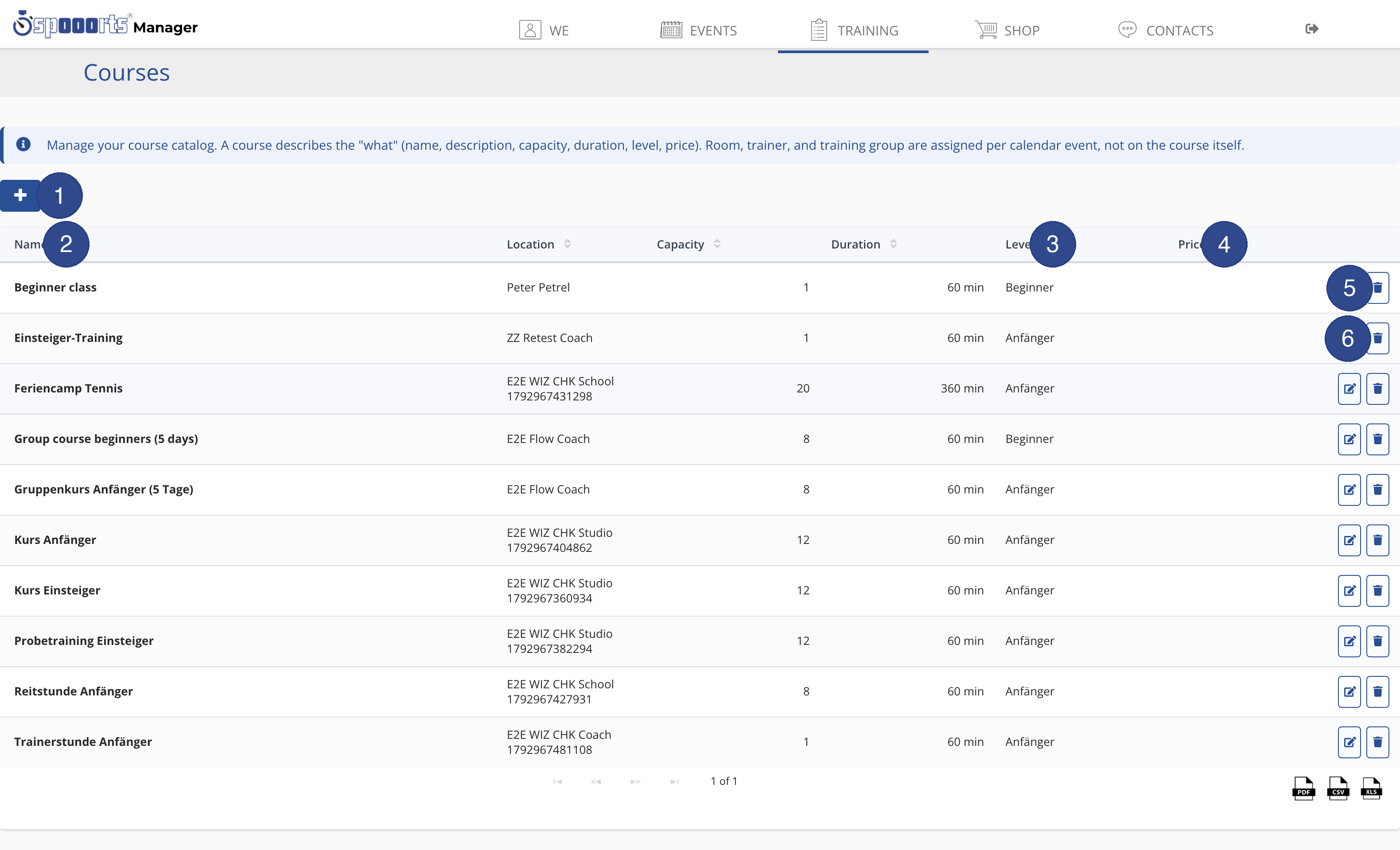
- ① New course
- Opens the form to create a new course. A course describes the "what" – name, capacity, duration, level and price; room, trainer and group are set later when scheduling in the calendar.
- ② Name
- The course name. Click the column to sort the catalog alphabetically.
- ③ Level
- The level of the course, e.g. beginner or advanced. This helps participants find the right course.
- ④ Price
- The price to take part in the course; if empty, the course is free or covered by a pass.
- ⑤ Edit
- Opens the course to change its name, description, capacity, duration, level and price.
- ⑥ Delete
- Permanently removes the course from the catalog after a confirmation prompt. Remove any scheduled dates from the calendar first.
Courses & training
Menu path: Training → Courses and Calendar. A course has a name, date(s), duration, capacity and price; series and exceptions are maintained in the course/calendar schedule. Registrations run via the course page.